Apple Maps Business Listing for Dentists: How to Claim + Optimize Your Profile
Posted on 2/3/2026 by WEO Media |
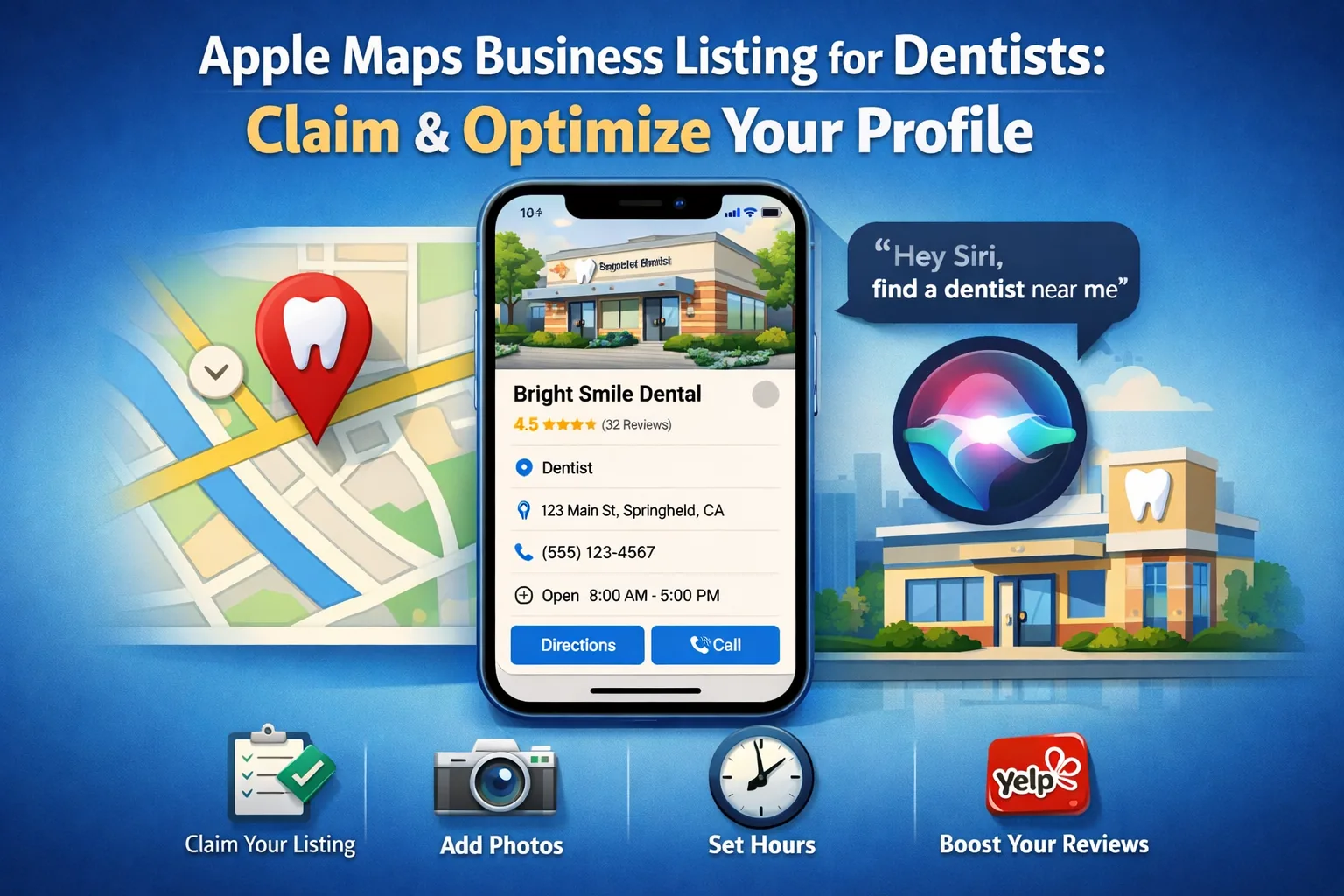 If your practice isn’t showing up when iPhone users search for a dentist nearby, you’re invisible to more than half of smartphone users in the United States. Apple Maps isn’t a secondary platform—it’s the default navigation app on every iPhone, iPad, Mac, and Apple Watch, and it powers every “Hey Siri, find a dentist near me” voice search. With iPhones holding over 57% of the US smartphone market and an estimated 75–100 million Americans using Apple Maps monthly, an unclaimed or incomplete listing means you’re losing patients to competitors who took 15 minutes to set theirs up. This is a critical component of local SEO for dentists that many practices overlook. If your practice isn’t showing up when iPhone users search for a dentist nearby, you’re invisible to more than half of smartphone users in the United States. Apple Maps isn’t a secondary platform—it’s the default navigation app on every iPhone, iPad, Mac, and Apple Watch, and it powers every “Hey Siri, find a dentist near me” voice search. With iPhones holding over 57% of the US smartphone market and an estimated 75–100 million Americans using Apple Maps monthly, an unclaimed or incomplete listing means you’re losing patients to competitors who took 15 minutes to set theirs up. This is a critical component of local SEO for dentists that many practices overlook.
The good news: claiming and optimizing your Apple Maps listing is free, straightforward, and entirely within your control through Apple Business Connect. Unlike Google Business Profile, which most practices already manage, Apple Maps is still overlooked by many dental offices—creating an opportunity to stand out in local search results, Siri voice queries, and CarPlay navigation. It’s an essential part of your online directory presence.
Already have a strong Google Business Profile? That’s a great foundation, but Apple and Google don’t share data. You need both to capture the full local search audience.
Below, you’ll learn exactly how to claim your Apple Maps listing, verify your practice, optimize every field for maximum visibility, and avoid the mistakes that keep dental offices from appearing in “dentist near me” searches. We’ll also cover how Apple Maps works differently from Google—including its reliance on Yelp reviews for Siri answers—so you can build a complete local presence as part of your dental marketing strategy.
Written for: dental practice owners, office managers, and marketing teams who want to capture the iPhone-using half of their local patient base.
TL;DR
If you only do five things, do these:
| • |
Claim your listing through Apple Business Connect - go to businessconnect.apple.com, sign in with an Apple ID, search for your practice, and follow the verification prompts
|
| • |
Complete every field - business name, address, phone, website, hours, categories, and photos all factor into visibility
|
| • |
Verify your practice - Apple requires phone verification or document upload to unlock full editing and visibility
|
| • |
Add high-quality photos - exterior shots help patients recognize your building; interior shots build trust before they arrive
|
| • |
Keep hours accurate - wrong hours are the fastest way to lose a patient who drives to a closed office |
Table of Contents
Why Apple Maps matters for dental practices
Apple Maps isn’t catching up to Google—it’s already a primary discovery channel for a massive segment of your potential patients. Understanding the numbers helps explain why this platform deserves the same attention you give your Google listing.
iPhone market share and user behavior
In the United States, iPhones account for over 57% of the smartphone market, with estimates placing the active iPhone user base at approximately 150 million Americans. These aren’t users who might occasionally check Apple Maps—it’s their default. When they tap the Maps icon, ask Siri for directions, or use CarPlay in their vehicle, Apple Maps is what responds.
A pattern we commonly see: practices invest heavily in Google Business Profile optimization, run paid search campaigns, and build strong SEO foundations—then wonder why a segment of local searchers never seems to find them. Often, the answer is that those searchers are iPhone users whose “dentist near me” query never touched Google at all.
Voice search and Siri integration
Voice search statistics reveal why Apple Maps optimization matters beyond traditional screen-based searches. Approximately 76% of voice searches have local intent—users looking for businesses nearby. Siri handles these queries for iPhone users, and Siri pulls local business data from Apple Maps (supplemented by Yelp reviews). This makes Apple Maps a key factor in “near me” SEO for dentists.
When someone in their car says “Hey Siri, find a dentist open now” or “Where’s the closest dental office?”, the results come from Apple Maps listings. If your practice isn’t claimed, verified, and complete, Siri may display competitors instead—or show incomplete information that discourages the caller.
CarPlay and in-vehicle discovery
Over 90% of new vehicles sold in the United States now support Apple CarPlay, and research shows that one in three new car buyers consider CarPlay a must-have feature. When drivers use CarPlay for navigation, Apple Maps is the default experience. A patient looking for “emergency dentist” while driving home from work is using Apple Maps to find you—or your competitor.
> Back to Table of Contents
How to claim your Apple Maps listing (step-by-step)
Apple Business Connect is the platform for managing how your dental practice appears across Apple Maps, Siri, Spotlight search, and Wallet. The claiming process takes approximately 15–30 minutes, depending on whether your practice already exists in Apple’s database.
Step 1: Access Apple Business Connect
Navigate to businessconnect.apple.com and click “Get Started.” You’ll need an Apple ID to proceed. If you don’t have one, or prefer to keep business accounts separate from personal devices, create a new Apple ID specifically for your practice’s business listings.
Tip: Use an email address that multiple team members can access, such as a shared office email, so account recovery doesn’t depend on one person.
Step 2: Choose your business type
Apple presents three options: Small Business (fewer than 25 locations), Enterprise (25 or more locations), and Third-Party Partner (for agencies or listing managers). Most dental practices should select Small Business. Multi-location DSOs may need Enterprise verification, which involves additional documentation.
Step 3: Search for your practice
Type your practice name into the search field. Apple’s database often already contains basic business information pulled from third-party data providers like Yelp. If your practice appears, select it to claim the existing listing. If it doesn’t appear, click “Add a new location with this name” to create a fresh listing.
What we typically find: most established dental practices already have a listing in Apple Maps, but it contains outdated or incomplete information because no one has claimed it. Claiming lets you correct errors and add details that improve visibility.
Step 4: Enter or confirm business information
Complete all requested fields:
| • |
Business name - use your official practice name as it appears on signage and other listings (consistency matters for local SEO)
|
| • |
Address - verify the pin placement on the map and adjust if needed
|
| • |
Phone number - use your main patient line, not a personal cell
|
| • |
Website - link to your homepage or a location-specific page if you have multiple offices
|
| • |
Business category - select “Dentist” as your primary category; add secondary categories like “Cosmetic Dentist” or “Pediatric Dentist” if applicable
|
| • |
Hours of operation - include regular hours and note any lunch closures |
Step 5: Submit for verification
After entering your information, Apple requires verification before you gain full control of the listing. The verification process confirms you’re authorized to represent the business—not a competitor trying to sabotage your listing or a scammer creating fake locations.
> Back to Table of Contents
Verification options and timing
Apple takes listing accuracy seriously, which benefits legitimate dental practices by reducing spam and fake competitors. Verification methods vary based on whether you’re claiming an existing listing or adding a new one.
Phone verification (existing listings)
For practices already in Apple’s database, phone verification is typically available. Apple calls the business phone number on file and provides a PIN code. Enter the PIN in Apple Business Connect to complete verification. This process usually takes under five minutes if someone is available to answer.
Practical consideration: coordinate with your front desk so they know to expect the call and write down the code. Missed verification calls delay the process.
Document verification (new listings)
If you’re adding a practice that doesn’t exist in Apple’s database, or if phone verification isn’t offered, Apple requires document upload. Acceptable documents include a business license, utility bill, or lease agreement showing your practice name and address. Apple reviews these manually, which can take several business days.
Domain verification (alternative method)
Some businesses can verify by adding a DNS TXT record to their website domain. This option works well for practices with access to their domain registrar, but requires some technical knowledge. If your dental website is managed by a marketing agency, they can typically handle this quickly.
Timeline expectations
Phone verification completes almost immediately. Document and domain verification typically take up to 5 business days, though Apple doesn’t publish exact timelines. During this period, your listing may be visible but you won’t have full editing capabilities.
> Back to Table of Contents
How to optimize your Apple Maps profile
Claiming and verifying your listing is the foundation—optimization is what makes your practice stand out in search results and voice queries. Every field you complete gives Apple more information to match your practice with relevant searches.
Business description
Apple Business Connect allows you to add a business description that appears on your place card. Write 2–3 sentences that clearly communicate what your practice offers and who you serve. Mention your location (neighborhood or city), key services, and any differentiators.
Example approach: “[Practice Name] provides comprehensive family dentistry in [City/Neighborhood], including preventive care, cosmetic treatments, and same-day emergency appointments. Our team welcomes patients of all ages in a comfortable, modern office.”
Avoid keyword stuffing or promotional language like “best dentist in town.” Apple’s guidelines emphasize factual, helpful descriptions.
Categories and attributes
Select the most accurate primary category (“Dentist” for general practices) and add relevant secondary categories. Similar to how schema markup helps search engines understand your website, accurate categories help Apple understand your practice. Available options may include:
| • |
Cosmetic Dentist - if you offer veneers, whitening, or smile makeovers
|
| • |
Pediatric Dentist - if you specialize in or welcome children
|
| • |
Orthodontist - if you provide braces or clear aligners
|
| • |
Oral Surgeon - if surgical services are a core offering
|
| • |
Emergency Dental Service - if you accept same-day urgent cases |
Attributes let you indicate accessibility features, payment options, and amenities. Complete all that apply—these help Apple match your practice with specific user queries.
Photos that build trust
Photos significantly impact whether a potential patient chooses your practice or scrolls to the next option. Apple displays photos prominently on your place card, so quality matters.
Recommended photos:
| • |
Exterior shot - helps patients recognize your building when they arrive; include visible signage
|
| • |
Reception area - shows the first impression patients will experience
|
| • |
Treatment room - demonstrates modern equipment and cleanliness
|
| • |
Team photo - builds familiarity before the first visit (avoid clinical settings; a friendly group shot works well)
|
| • |
Waiting area - highlights comfort, especially if you have amenities like TVs or refreshments |
Use high-resolution images with good lighting. Avoid stock photos, before/after clinical images, or anything that might feel impersonal. Consider investing in professional dental practice photography to ensure your listing stands out.
Hours and special hours
Accurate hours prevent frustrated patients who arrive at a closed office. Enter your regular weekly schedule, including any lunch closures. Use the “special hours” feature for holidays, planned closures, or temporary schedule changes.
What we commonly see: practices set their hours once during claiming and never update them. When holiday schedules arrive, the listing shows regular hours, and patients show up to locked doors. Build a habit of updating Apple Business Connect alongside your website and Google listing whenever hours change.
Action buttons and links
Apple Business Connect supports action links that let users take immediate action from your listing. Ensure your website URL is correct and consider whether Apple offers booking integration in your area. When available, direct booking links reduce friction and capture patients before they click away.
> Back to Table of Contents
Common mistakes that hurt visibility
Even claimed and verified listings can underperform if certain errors remain. These are the issues we encounter most frequently when auditing dental practice Apple Maps listings.
Inconsistent NAP information
NAP stands for Name, Address, Phone—the core identifiers search platforms use to understand your business. If your Apple Maps listing shows “123 Main Street” but your website says “123 Main St.” and Google says “123 Main Street, Suite 100,” you’re creating confusion. Platforms may treat these as different businesses or lower your visibility due to inconsistency. NAP consistency is one of the top local SEO ranking factors for dental practices.
The fix: choose one standardized format for your practice name and address, then use it identically across Apple Maps, Google Business Profile, your website, Yelp, and every other directory.
Wrong or missing category
Selecting an incorrect primary category—or leaving it blank—means Apple doesn’t know when to show your practice. If your category is “Medical Office” instead of “Dentist,” you won’t appear for “dentist near me” searches even if everything else is perfect.
Outdated phone numbers
If your practice changed phone numbers (common after relocations or phone system upgrades), the old number may still appear on your Apple Maps listing. Potential patients calling that number reach a dead line or wrong business, and you never know you lost them.
No photos or low-quality images
Listings without photos appear less trustworthy and less complete. Apple may prioritize listings with rich media over bare-bones entries. Similarly, blurry, dark, or unprofessional photos can hurt rather than help.
Ignoring the Yelp connection
Siri often pulls review information from Yelp when answering local queries. If your Yelp listing has few reviews, low ratings, or is unclaimed, that affects how Siri presents your practice in voice search results—even if your Apple Maps listing is perfect. A complete reputation management strategy includes both platforms.
> Back to Table of Contents
Ongoing maintenance and monitoring
Claiming and optimizing your listing isn’t a one-time task. Patient expectations change, your practice evolves, and Apple occasionally updates its platform. Build these maintenance habits into your regular operations.
Quarterly listing audits
Every three months, log into Apple Business Connect and verify that all information remains accurate. Check hours, phone numbers, website links, and photos. Search for your practice on Apple Maps from a personal iPhone to see exactly what patients see. Consider including this in a broader local SEO audit or comprehensive SEO audit to catch issues across all platforms.
Update hours proactively
Before every holiday or planned closure, update your special hours. Set calendar reminders for Thanksgiving, Christmas, New Year’s, July 4th, and any other days your schedule changes. Patients searching for “dentist open today” on a holiday will only find practices with accurate hours.
Add new photos annually
Office renovations, new equipment, team changes—these create opportunities for fresh photos. Aim to add at least one new photo per year to keep your listing current and signal to Apple that your profile is actively maintained.
Monitor and respond to any feedback
While Apple Maps doesn’t have a native review system like Google, it surfaces Yelp reviews and may incorporate other feedback mechanisms in the future. Stay aware of what appears on your listing and address issues on the source platforms.
> Back to Table of Contents
Apple Maps vs Google Business Profile
You don’t choose between Apple Maps and Google—you need both. But understanding how they differ helps you optimize each appropriately.
User base differences
Google dominates overall search, but Apple Maps captures a specific, valuable segment: iPhone users who stay within Apple’s ecosystem. These users tend to have higher household incomes on average and strong brand loyalty. For dental practices, this often translates to patients who value quality and are less price-sensitive.
Data sources and reviews
Google Business Profile has its own review system, and those reviews heavily influence local pack rankings. Apple Maps doesn’t host reviews natively—it pulls from Yelp and other third-party sources. This means your Yelp reputation affects your Apple Maps visibility, creating a reason to actively manage Yelp even if you focus your review-generation efforts on Google.
Voice assistant implications
Google Assistant pulls from Google Business Profile. Siri pulls from Apple Maps. If you optimize only for Google, you’re invisible to Siri users—and vice versa. Since both assistants are widely used, comprehensive local SEO requires both listings.
Management effort
Fortunately, the optimization principles overlap significantly: accurate NAP information, complete profiles, quality photos, and correct categories help on both platforms. The additional effort to maintain Apple Business Connect is minimal once your Google listing is already optimized—especially when your dental website already displays consistent business information.
> Back to Table of Contents
Ready to strengthen your local presence?
Apple Maps optimization is one component of a comprehensive dental marketing strategy. Combined with SEO, paid advertising, and strong intake processes, it helps ensure that every potential patient in your area can find you—regardless of which device they use or how they search.
If you’d like help auditing your current local listings, building a complete presence across Apple, Google, and other platforms, or developing a marketing strategy that captures more of your local market, our team is ready to help. Schedule a consultation or call 888-246-6906 to start a conversation.
FAQs
Is Apple Business Connect free for dental practices?
Yes, Apple Business Connect is completely free. There are no fees to claim, verify, or manage your dental practice listing on Apple Maps. Apple offers this service to ensure accurate business information across its platforms, benefiting both users and businesses.
How long does Apple Maps verification take for a dental office?
Phone verification completes almost immediately once you answer the call and enter the PIN. Document verification and domain verification typically take up to 5 business days, though Apple does not publish exact timelines. Plan for up to two weeks if document review is required during peak periods.
Do I need Apple Maps if I already have Google Business Profile?
Yes. Apple and Google do not share listing data. iPhone users who search via Apple Maps or Siri will not see your Google Business Profile information. With iPhones holding over half of US smartphone market share, an unclaimed Apple Maps listing means missing a significant portion of local searchers.
What if someone else already claimed my dental practice listing?
If another party has claimed your listing, you can request access through Apple Business Connect by proving you represent the business. Apple will investigate and transfer ownership to the legitimate owner. This process may require documentation such as a business license or utility bill showing your practice name and address.
How do Apple Maps and Yelp connect for dental practices?
Siri uses Apple Maps for location data and pulls review information from Yelp when answering local business queries. This means your Yelp rating and reviews can affect how Siri presents your practice in voice search results. Maintaining a strong Yelp presence supports your Apple Maps visibility.
What categories should a dental practice select on Apple Maps?
Select “Dentist” as your primary category. Add relevant secondary categories based on your services, such as “Cosmetic Dentist,” “Pediatric Dentist,” “Orthodontist,” or “Emergency Dental Service.” Accurate categories help Apple match your practice with specific user searches.
Can I manage Apple Maps listings for multiple dental office locations?
Yes. Apple Business Connect supports multi-location management. Practices with fewer than 25 locations can manage each through the Small Business interface. Dental groups or DSOs with 25 or more locations may qualify for Enterprise access, which provides bulk management tools and dedicated support.
How often should I update my dental practice Apple Maps listing?
Review your listing quarterly to ensure all information remains accurate. Update hours proactively before holidays and whenever your schedule changes. Add new photos at least annually, especially after office renovations or team changes. Treat Apple Maps maintenance as an ongoing operational task, not a one-time setup. |
|